Setting up Cloudinary
Skillsaint uses Cloudinary for scalable image management. Follow these steps to configure Cloudinary for your project.
Prerequisites
Before you begin, ensure you have a Cloudinary account. You can sign up for free at cloudinary.com .
1. Get Your API Credentials
-
Log in to your Cloudinary dashboard.
-
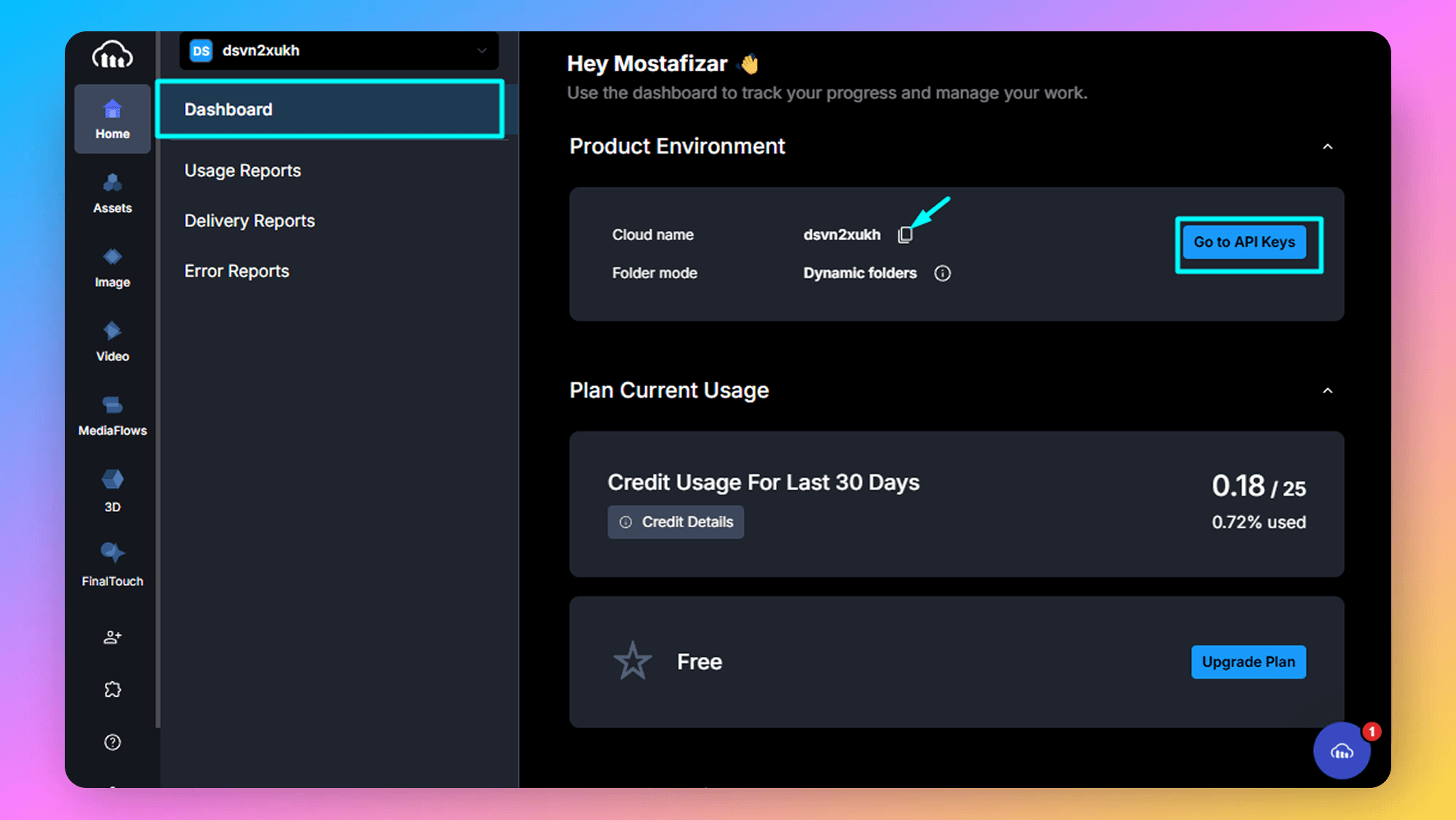
Navigate to the Dashboard (usually the landing page after login).
-
Copy the Cloud Name, then click the Go To API Keys button.
-
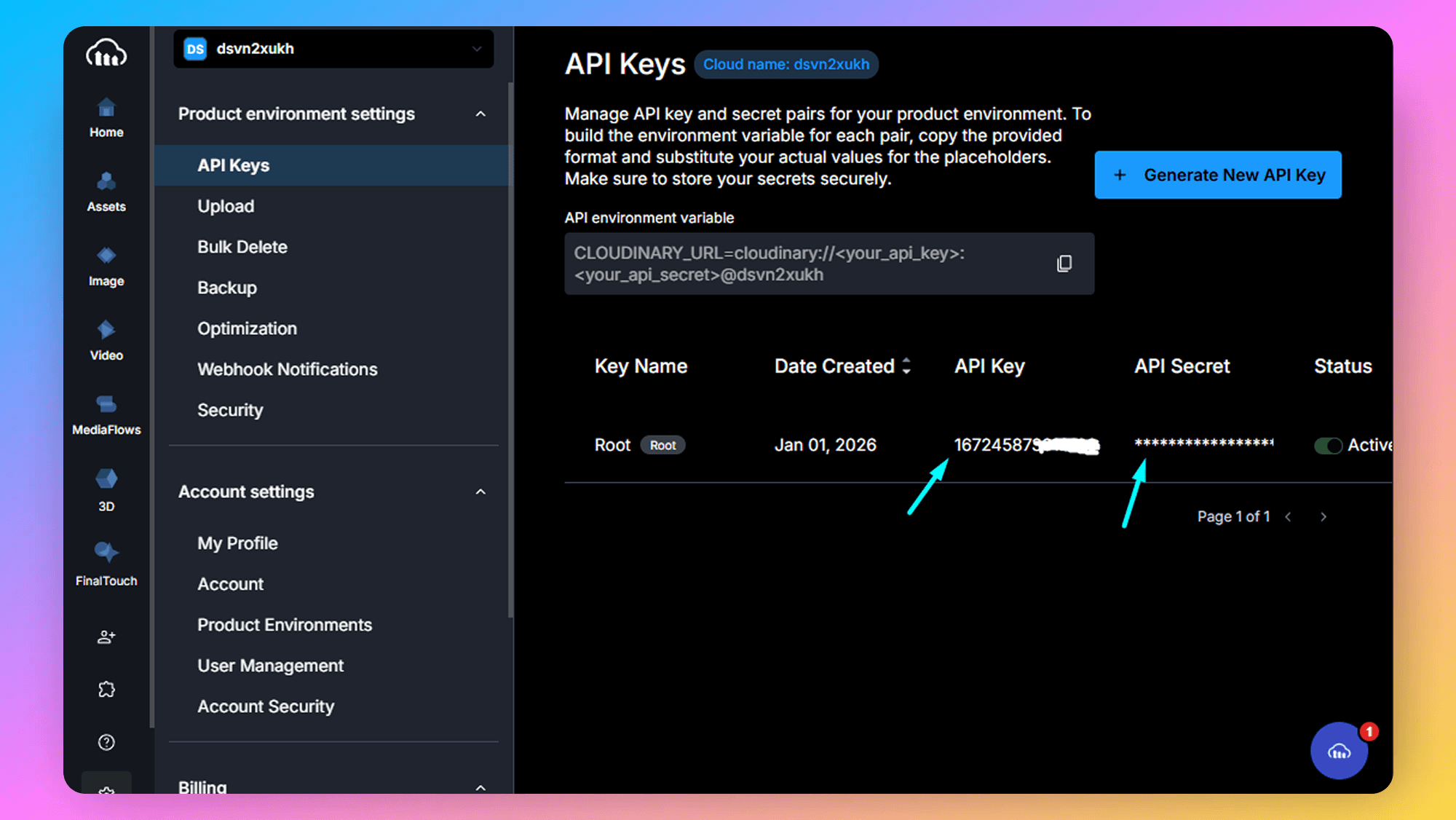
You can now view the API Key and API Secret in the API Keys table. Copy both of them.
2. Configure Environment Variables
Add the following variables to your .env file in the root of your project:
NEXT_PUBLIC_CLOUDINARY_CLOUD_NAME=your_cloud_name
CLOUDINARY_API_KEY=your_api_key
CLOUDINARY_API_SECRET=your_api_secret
3. Verification
Once configured, the application will automatically use these credentials for media uploads. You can verify the integration by trying to upload a profile image in the application.
Troubleshooting
-
Upload Failures:
- Double-check that your
CLOUDINARY_API_KEYandCLOUDINARY_API_SECRETare correct. - Ensure your Cloudinary account has sufficient credits/bandwidth.
- Check the server logs for any specific error messages from the Cloudinary SDK.
- Double-check that your
-
Images Not Loading:
- Verify that the
NEXT_PUBLIC_CLOUDINARY_CLOUD_NAMEis correct, as this is used to construct the public URLs.
- Verify that the